|
September/October 2005 Page 2
OCLC PRODUCT OF THE
MONTH: OCLC USAGE STATISTICS TRACK YOUR ACTIVITY IN FIRSTSEARCH, OPEN WORLDCAT, RESOURCE SHARING, AND ONLINE
CATALOGING
In January 2005, OCLC updated the OCLC Usage Statistics web site with a new
interface and added more reports. Available via the same URL,
http://www.stats.oclc.org,
that the FirstSearch Statistics have always been available from, the new
interface has been enhanced to make finding and using statistics easier for
libraries.
Statistics are now available on FirstSearch, Open WorldCat, Resource Sharing and
Online Cataloging. The reports are free to all libraries who use these OCLC
services. Libraries logging in with any of their institution's OCLC
authorizations have access to all available reports for their institution.
Reports can be printed out, exported into a spreadsheet, or e-mailed. With the
e-mail option, librarians can select reports to be automatically sent to them
each month.
The Usage Statistics web site has also been improved with a new tabbed
interface, making the site easier to navigate and more intuitive. Context
sensitive online Help is available via a pop-up window.
FirstSearch Report Changes
The FirstSearch "Full Text Used" and "Simultaneous Usage" reports now include
history. The "Simultaneous Usage" Report has also been redesigned to make
month-to-month comparisons easier.
FirstSearch reports are available by the 10th of the month and go back three years.
Open WorldCat Report
New to the Usage Statistics web site is the "Open WorldCat Clicks to Libraries
Report". This report is available to all OCLC libraries. Libraries can use this
report to determine what usage the Open WorldCat program is bringing to their
library's website.
The numbers show how many users are looking at your library information or
checking your holdings, and how many of your authenticated users are searching
in your OPAC via an Open WorldCat link, or using your other resources, such as
JSTOR and full text.
The Open WorldCat report is available by the 10th of the month. The report
begins with October 2004, and will expand to 3 years as the program evolves.
Resource Sharing Reports
Resource Sharing reports that previously were available from the OCLC Product
Services Web site have been moved to the Usage Statistics site.
The following Resource Sharing reports are available:
- ILL Fee Management Program Borrower and Lender Reports
- Resource Sharing Borrower and Lender Reasons For No Reports
- Borrower and Lender Resource Sharing Stats Reports
- Strategic Union List Report
- Borrower and Lender Overview Reports
- Borrower and Lender Detail Reports
Resource Sharing reports are available by the 10th of the month. The reports
begin with October 2004, and will eventually provide three years of data.
Online Cataloging Reports
Online cataloging statistics can be accessed on the Usage Statistics site or
from within Connexion. In the browser, before you log in, click on "Connexion
statistics" in the Related Links box on the logon screen, or, after you log in,
click on "Connexion statistics" under Useful Links on the welcome page. In the
client version 1.40, you can access "Connexion statistics" under Help > Useful
Web Links.
Under the Connexion tab in OCLC Usage Statistics, you will find reports for your
institution and for individual cataloging authorization numbers associated with
your institution. Monthly and Daily Usage Reports include totals for searches
and record actions performed in WorldCat and the Authority File. There is a
report available for total Connexion statistics, with separate reports for
client and browser activity.
Connexion monthly reports are available within five days of the end of a month.
A report for each day is available the following day. Daily reports are
available for the current month only. Once a monthly report is available for a
preceding month, daily reports for that month are deleted. The reports begin
with May 2005 and will eventually provide 18 months of data.
If you have any questions about OCLC Usage Statistics please contact Christa Burns at
402-471-3107 or 800-307-2665.
Christa Burns
OCLC Member Services Coordinator
Nebraska Library Commission
Back to Contents
WORLD'S LARGEST LIBRARY DATABASE REACHES BILLIONTH MILESTONE
WorldCat, the world's richest online resource for finding library materials, now
contains information about where to find 1 billion books, journals, theses and
dissertations, musical scores, computer files, CDs, DVDs and other items in
thousands of libraries worldwide.
At 2:21:34 p.m. Eastern Daylight Time on Thursday, August 11, Anne Slane, a
cataloger at Worthington (Ohio) Libraries for 23 years, entered the 1 billionth
holding in WorldCat for the book, The Monkees: The Day-by-Day Story of the
'60s TV Pop Sensation. By entering this holding information to the WorldCat
database, Worthington Libraries shows that it owns the book so that librarians,
researchers, students and other interested readers worldwide know where to find
what they're looking for in a library.
"We're just thrilled to have reached this milestone in WorldCat," said Meribah
Mansfield, Director of Worthington Libraries, in Worthington, Ohio, USA. "I
started library school in 1971, the same year WorldCat went online, so I feel
like we've grown up together. I remember library school was all abuzz about this
great new advance in technology. Now, whenever I see a new development in
library technology, I think in terms of 'son of WorldCat' or building on the
idea of sharing resources that WorldCat began."
OCLC Online Computer Library Center, Inc., the world's largest library
cooperative, developed a shared cataloging service that first went online in
1971. The idea was for libraries in Ohio to share cataloging information from
one central electronic database, now known as WorldCat. The OCLC shared
cataloging model revolutionized the librarian's workflow and helped make it easy
for library patrons to find and get the library materials they needed. What was
once a database shared by libraries in Ohio, grew to a national union catalog,
and today, is a global library resource used by more than 54,000 libraries in 96
countries.
Through WorldCat, libraries share not only cataloging information, but library
materials as well. If a library does not own a particular item a patron is
looking for, that item can be located and borrowed from another library by using
the ownership information on the catalog record.
Today, 34 years after going online, WorldCat contains more than 61 million
unique catalog records representing 1 billion items in libraries. The Bible,
Mother Goose, Huckleberry Finn, and Alice's Adventures in
Wonderland are among the top ten titles in WorldCat, and together those ten
titles represent more than 1 million items in libraries worldwide. On the other
end of the spectrum, there are many unique items cataloged in WorldCat,
treasures held in only one place in the world such as a Babylonian temple
receipt for cattle and sheep used in temple services around 2350 B.C., or a
papyrus manuscript of an edict issued by Publius Petronicus dating from 22 B.C.
The WorldCat of today is vastly different from that of 1971. Today's WorldCat
technological platform makes it possible to accommodate virtually all languages,
formats and scripts. It is now possible to load records of entire collections
from libraries all over the world. And what was once a resource used only by
libraries and librarians is now available to searchers worldwide using their
favorite Web search engines. Search engines like Google and Yahoo! make these
detailed library records universally available.
Librarians have always recognized the value of cooperation in libraries, and
WorldCat is the product of that kind of cooperative effort to serve library
patrons.
"Thirty four years ago this month, 54 libraries in Ohio began a cooperative
effort to build an online union catalog," said Betsy Wilson, Chair, OCLC Board
of Trustees, and Dean of Libraries, University of Washington. "Today, that
cooperative effort extends to more than 54,000 libraries in 96 countries. On the
occasion of the one billionth holding symbol being added to WorldCat, I would
like to thank OCLC member libraries, regional service providers, networks and
international distributors for their continuing commitment to OCLC's public
purposes of furthering access to the world's information and reducing library
costs. Thousands of catalogers and librarians around the world have worked
together these past 34 years to create, keystroke by keystroke, record by
record, and symbol by symbol, a unique and valuable library resource for
knowledge seekers everywhere. We have much to be proud of and much to
celebrate."
"Passing the one billion mark in holding symbols is an impressive example of
what long-term focus and collaboration can produce," said Jay Jordan, President
and CEO, OCLC. "As WorldCat continues to grow in depth and breadth, our new
technological platform is amplifying the power of its information and holdings
and facilitating resource sharing on a global scale. Groups of libraries can now
access customized views of their WorldCat holdings. The database now supports
Cyrillic, Greek and Hebrew scripts in addition to Arabic, Chinese, Japanese,
Korean and Latin scripts. The general public can search WorldCat on the Open Web
and be directed to specific library catalogs and holdings. Very soon libraries
will start to enrich WorldCat with reviews, readers' advisories and other full
text. In short, as we pass the one billion holdings mark, WorldCat will continue
to become even bigger, better and more accessible. Three cheers for WorldCat and
the OCLC cooperative!"
About WorldCat
WorldCat is the world's largest bibliographic database, the merged catalogs of
thousands of OCLC member libraries. Built and maintained collectively by
librarians, WorldCat provides the foundation for many OCLC services. To watch
the WorldCat database grow, see:
www.oclc.org/worldcat/grow.htm.
See the top 1000 Titles held by OCLC member libraries in WorldCat:
www.oclc.org/research/top1000/complete.htm
OCLC [edited]
Back to Contents
QUICK REFERENCES AVAILABLE FROM OCLC
The following is an updated list of quick references available from OCLC, for
products ranging from FirstSearch to Connexion. These quick references are all
available in HTML and/or PDF format on the OCLC Web site (http://www.oclc.org/default.htm).
Click on the title of each quick reference for a direct link to that item.
You may also request a no-charge copy of any quick reference on the list by
sending an e-mail to orders@oclc.org.
Reference Cards Currently Available
| Product Code |
Title |
No. of Pages |
Last Updated |
| REF1061 |
Product Services Reference Card |
2 pp. |
November 2004 |
| REF2209 |
Using OCLC FirstSearch |
2 pp. |
July
2003 |
| REF1084 |
CONTENTdm Quick Reference (PDF) |
2 pp. |
December
2004 |
| REF1089 |
Getting Started with the OCLC ILL Policies Directory |
2 pp. |
April
2004 |
| REF2153 |
FirstSearch/ILL Direct Request Quick Reference |
2 pp |
February
2004 |
| REF2455 |
Union List Reference Card |
8 pp. |
April
2002 |
| REF2474 |
Document Supplier Program Quick Reference (PDF) |
4 pp.
|
February 2004 |
| REF1093 |
OCLC CatExpress Quick Reference |
2 pp. |
December 2003 |
| REF1103 |
WorldCat Collection Analysis Quick Reference |
8 pp. |
May 2005 |
| REF2083 |
Connexion: Searching WorldCat Quick Reference |
8 pp. |
May 2005 |
| REF1101 |
WorldCat Resource Sharing Quick Reference |
8 pp.
|
June
2005 |
Peter Insabella
Manager, Product Documentation Content
OCLC, Inc.
Back to Contents
USE OCLC'S FREE ONLINE TUTORIALS IN
THE COMFORT OF YOUR OWN LIBRARY
Are you unable to attend a scheduled NEBASE workshop? Would you like to brush up
on your OCLC searching, cataloging or interlibrary loan skills? Do you have a
new staff member to train? Would you like to see an OCLC product in action
before making a purchasing decision?
Tutorials, lessons, guided tours, and demonstrations for many OCLC products and
services can be found on the OCLC Training web site at:
http://www.oclc.org/support/training/.
WorldCat Resource Sharing Tutorials a series of tutorials that covers the
basics of resource sharing and will help you get started. Topics include: User
Interface and Logon, Borrower Basics, Lender Basics, Constant Data, Batch
Processing, Custom Holdings and more.
Using OCLC CatExpress in Connexion: An OCLC Tutorial provides a
simulation of the CatExpress service, a web-based tool for inexpensive and easy
copy cataloging. The course includes exercises in searching, adding local
information, setting holdings, and downloading records. It takes the learner
through the basic steps of CatExpress from start to finish and mirrors the
simplicity of the product itself.
Using WebDewey: An OCLC Tutorial shows you how to make the most effective
use of WebDewey. This tutorial introduces you to searching and browsing, teaches
you how to create user notes, and shows you how to build numbers accurately and
efficiently with WebDewey.
Use the Connexion Browser Tutorials or the Connexion Client Tutorials
to learn how to use Connexion to create and edit bibliographic and authority
records. The series of tutorials covers the various features of each OCLC
Connexion interface. Topics include: Searching WorldCat, Managing Constant Data,
Creating, Editing and Taking Final Actions on Bibliographic Records, and more.
Christa Burns
OCLC Member Services Coordinator
Nebraska Library Commission
Back to Contents
OCLC WEB INFORMATION SESSIONS
OCLC is offering FREE web information sessions to both OCLC member and nonmember
libraries. The sessions will include a live presentation that you will access
from your own computer via the web, with audio available via a conference call.
You will be able to submit questions you have at any time during the
presentation.
Registration information and complete descriptions of the sessions can be found
on the OCLC web site at
http://www.oclc.org/education/websessions/usa/.
The following sessions are currently scheduled:
NetLibrary Audiobooks - Learn how you can add a new dimension to your
online collections - audiobooks! Thursday, September 15, 1:00 - 2:00 p.m.
(Central Time)
NetLibrary - Curious about eBooks that are accessible via the Web and
FirstSearch? Thursday, September 15, 3:00 - 4:00 p.m. (Central Time)
OCLC Language Sets and Custom Collections - Build your multilingual
collections with fiction and non-fiction books, videos and DVDs. Thursday,
September 22, 1:00 - 2:00 p.m. (Central Time)
CONTENTdm - Managing your digital library. Wednesday, September 28, 2:00 -
3:00 p.m. (Central Time)
Christa Burns
OCLC Member Services Coordinator
Nebraska Library Commission
Back to Contents
STREAMLINING FIRSTSEARCH WORLDCAT RESULTS
This fall, OCLC is planning to install a new streamlined view of FirstSearch
WorldCat results. Streamlining results in FirstSearch WorldCat will increase the
general comfort level of users by reducing the number of perceived duplicates,
will provide a rapid and efficient pathway to the desired materials, and improve
resource sharing. To do this, OCLC is using concepts from FRBR (Functional
Requirements for Bibliographic Records).
What is streamlining?
A search in WorldCat today on "the stone diaries" in the title index brings up
44 records, with many examples of perceived duplicates even among the first page
of results:
- Records 1, 2, 3, 9 & 10 are English prints
- Record 3 is an English large print version
- Records 4 and 5 are English books on cassette
- And translations of this book in other languages are not even seen until later
pages
With over 60 million records, WorldCat returns many records for a single search.
The cataloging concept of a unique item is too specific for many users, creating
the perception of duplicate records in WorldCat.
After streamlining, this is how the results for a search in WorldCat on "the
stone diaries" in the title index will look:
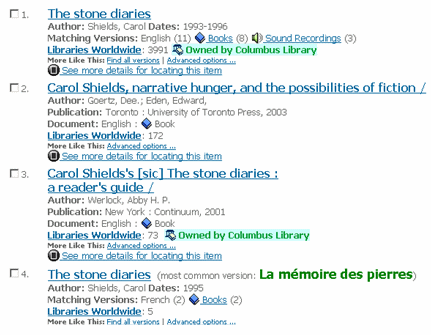
The user now only has to look at 22 records, rather than 44. The first record
represents 11 English versions of The Stone Diaries, including:
- All 3991 holdings
- All formats, in this case Book and Sound Records
And now, some of the translations show up on the first page of results, giving a
fuller view of what WorldCat has to offer. So, this streamlined view improves
visibility of library holdings and alternative versions of the work.
From the results list, when a user clicks on the hotlinked title, a single
record will appear:
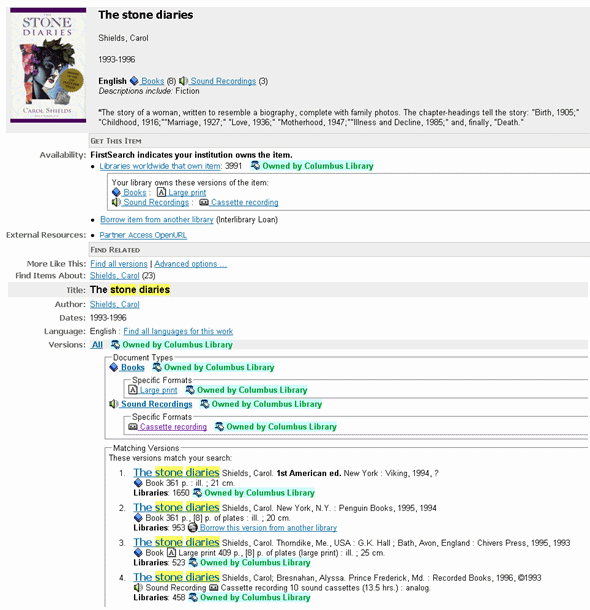
Here the user can once again see the number of matching records, and also the
different document types and formats included in this set of records. The user's
library's holdings are highlighted to direct the user to the copies held in
their library. The user can click on a document type to select more specific
types of material.
The search results still consist of the records that matched the search, but
they are streamlined for easier viewing, and better understanding, by the user.
This gives the user faster access to their desired records.
The streamlined view will be set as the default, as this presents a friendlier
results list to most users. But, the user will have the option to toggle the
feature on and off to suit their needs at the time. Users will be able to do a
search, see the streamlined results, but then toggle to the results sorted by
number of holding libraries. The user can also specify on the search screen what
sorting or ranking option they want.
How will streamlining effect resource sharing?
When users ask to borrow an item, FirstSearch will start with all of the records
that match the level selected. To be sure the user is requesting what they
really want, there will be a screen between their request to borrow and the
final request, asking them to confirm or choose format and/or language.
A benefit to WorldCat users
These changes originated from considering the concepts discussed in FRBR, which
provides a new way of looking at the discovery experience. However, the emphasis
is on improving the WorldCat user's experience - getting users to what they need
faster and easier.
The target release date for the streamlined view of FirstSearch WorldCat is Fall
2005. OCLC is currently conducting usability testing of the view. A public demo
will be available before the new view is installed into FirstSearch.
If you have any question, contact Christa Burns, OCLC Member Services
Coordinator, 402-471-3107, or 800-307-2665.
Christa Burns
OCLC Member Services Coordinator
Nebraska Library Commission
Back to Contents
WORLDCAT RESOURCE SHARING: SAVING YOUR
AUTHORIZATION AND PASSWORD
When using the OCLC WorldCat Resource Sharing interface, you may have noticed
that there is no built-in function to store your interlibrary loan authorization
number and password. However, you can still avoid having to type this
information every time you need to log in by having your browser save it for
you. This browser option isn't just for your OCLC authorization and password -
it will save any login information you use for other websites or databases, too.
Here are instructions for doing this in both Internet Explorer and Netscape:
Internet Explorer
- Go to Tools > Internet Options and choose the Content
tab.
- Click on the Auto Complete button in the personal information section.
- Mark the box next to User names and passwords on forms. This will trigger the
browser to remember your authorization number and password.
Netscape
- Go to Edit > Preferences.
- Click on the arrow next to Privacy and Security to show all options.
- Click on Passwords.
- Check Remember Passwords under the Password Manager.
Christa Burns
OCLC Member Services Coordinator
Nebraska Library Commission
Back to Contents
OCLC PILOT DESIGNED TO INCREASE USE
OF LIBRARIES' eSERIALS
OCLC began a pilot project that will make it easy for library staff and users to
find and use full-text electronic journals in library collections. The pilot
will involve twenty libraries and four partners-TDNet, EBSCO, Serials Solutions,
and Ex Libris.
The pilot will drive use of these electronic collections through greater
visibility in WorldCat applications, such as the OCLC FirstSearch service,
WorldCat Resource Sharing services, and the WorldCat Collection Analysis
service, and on the open Web through the OCLC Open WorldCat program.
[OCLC, edited]
Back to Contents
CONNEXION CLIENT VERSION 1.40 IS NOW AVAILABLE!
Client 1.40 includes a spell check, offline validation, additional non-English
interfaces, Hebrew, Greek, and Cyrillic script cataloging, access to the Chinese
Name Authority File, and more!
See
http://www.oclc.org/connexion/interface/client/enhancements/recent.htm to
read more about the changes and to download the software. A summary of changes
is listed below.
IMPORTANT!! : Prior to upgrading to client 1.40, please review the
"Update the Connexion client" section of the getting started document at:
http://www.oclc.org/support/documentation/connexion/client/
gettingstarted/#update_client.fm
OCLC will discontinue client 1.30 on December 1. As of this date, you
cannot log on with client 1.30. OCLC expects to release client 1.50 in November, so client 1.30 users can wait for 1.50 instead of upgrading to 1.40;
however, OCLC recommends that you upgrade to 1.40 to have the latest software
changes.
Client 1.40 changes include:
Spell check
Verify English language spelling in bibliographic and authority records. Choose
between Canada, Great Britain, and United States English dictionaries. Customize
the user dictionary, and specify fields to check and subfields to exclude.
Import the content of the user dictionary and field settings from the spell
checker used with Passport or CatME, if desired. Set up the spell check options
under Tools, Options, Spelling; run the spell check using the menu Tools, Check
Spelling (default keystroke <F7>).
Offline validation
Validate records when working offline. Offline validation verifies all data in
the record, as is done with online validation. Previously with CatME, CJK, and
Arabic software, the offline validation was a small subset of the full
validation process, so some records passed offline validation and then failed
online validation. You do not need to be logged on to Connexion to do this
validation; however, your workstation must have access to the Internet.
Local file sort
Sort the bibliographic local file by call number, and view the call number in
the local file list.
When sorting the bibliographic local file by title, ignore initial characters
based on the 245 filing indicator.
Note: records saved with previous versions of the client do not have these
changes until they are re-indexed. To re-index a local file, go to File, Local
File Manager, and select Compact/Repair. You must change the file to be your
default local file to re-index the data.
Local accessions list
Print records in accessions list format to create lists of your newly
cataloged items. Sort a local file list in the order you want to print the
entries in the accessions list, select the records, and print the list to a
printer or to an HTML file. Sort options include call number, control number,
date/time added to file, name, save file number, title, or any column in the
local file list. Set up the accessions list options under Tools, Options,
Printing; print the accessions list using the menu File, Print Accessions List.
Batch searching and processing enhancements
When entering batch search keys, specify a default index label to be used with
searches entered or imported. Select the default index in the Batch Search Keys
dialog.
When batch searching, specify a My Status value to be added to all records
downloaded to the local file. Specify the My Status value under View, Batch
Process.
Text strings
Apply text strings to records that include complete fields or multiple fields,
and the cursor is left at the end of the string so you can continue typing
additional data.
Access WebDewey
Launch WebDewey from the Connexion client using the menu item Cataloging, Launch
WebDewey, which opens your browser and automatically logs you onto WebDewey
using your default authorization number and password.
Access OCLC Usage Statistics
Launch OCLC Usage Statistics from the Connexion client to view statistics
describing your use of Connexion. The client opens your browser and
automatically logs you on to the statistics page using your default
authorization number and password. OCLC Usage Statistics are available to all
Connexion users at no charge; they are provided automatically without needing a
subscription.
Chinese (Simplified), Chinese (Traditional), and Japanese interfaces
Select Chinese (Simplified), Chinese (Traditional), or Japanese as your
interface language, or select English or Spanish, which are currently supported
in client 1.30. Change the interface language under Tools, Options,
International.
Arabic script align-right option
Select the menu item View, Align Right to view Arabic script data aligned on the
right side of the screen, with Latin script aligned on the left side.
Hebrew, Cyrillic, and Greek script cataloging
Catalog using Hebrew, Cyrillic, and Greek scripts. Search WorldCat using either
the romanized data or the script data. The first WorldCat records to include
these scripts were input by the University of Washington, Seattle, during the
client 1.40 field test. Record numbers include: Hebrew #60690901, Cyrillic
#60678907, and Greek #9355323. To view records in WorldCat that contain these
scripts, use the WorldCat command line search vp:hbr for Hebrew script, vp:cyr
for Cyrillic script, and vp:gre for Greek script. OCLC re-loaded approximately
43,000 Library of Congress records to add the Hebrew script to existing records.
In addition, OCLC is seeking records with these new scripts from members for
loading into WorldCat at no charge.
Note: although you can search and display the Hebrew, Cyrillic, and Greek script
records with Connexion client 1.30, cataloging with these scripts is not
supported by OCLC with client 1.30; you must upgrade to client 1.40 to catalog
using these scripts.
Access to the Chinese Name Authority File
Access the Chinese Name Authority File to search over 120,000 Chinese name
authority records and copy data to paste into bibliographic records. The Joint
University Librarians Advisory Committee (JULAC) of Hong Kong creates and
maintains the Chinese name authority file, which is expected to grow at a rate
of 8,000 to 10,000 records a year. Access the file using the menu item
Authorities, Search, Chinese Name Authority File.
Problem resolutions
Resolutions to several reported problems as listed in the Known Problems
document at
http://www.oclc.org/connexion/support/client_known_problems.htm.
David Whitehair
Connexion client product manager
OCLC Cataloging and Metadata Services
Back to Contents
CONNEXION ENHANCEMENT INSTALLATION
On Sunday, August 21, OCLC successfully completed the following installs
and enhancements:
- Validation options in Connexion browser to allow users set validation for
actions like export and update to Full, Basic, or None. Validation for new records entering the database will continue to be set at Full.
- Change in default validation in Connexion client. No automatic validation
will be done when setting holdings.
- Problem fixes. Several changes have been made when browsing authority
records in the client. Several constant data problems in the client have
also been fixed. If no index label is entered, a search term of 10 digits
is now automatically treated as an ISBN search, not a keyword search
(browser and client).
Please note: the previously reported problem with the Control All function
and linked fields in non-roman scripts has not been resolved.
For further information about these changes, please check Connexion News:
"2005-08 Connexion Changes".
Linda Gabel [edited]
OCLC Online Computer Library Center, Inc.
Back to Contents
INTRODUCING….THE DEWEY BLOG!
025.431: The Dewey blog is here!
025.431: The Dewey blog is a weblog covering topics related to the Dewey
Decimal Classification (DDC) and knowledge organization (KO). You'll find
news of, and views on, current issues; links to interesting, amusing,
and/or unusual DDC/KO-related resources; and continuous opportunity to
comment, give feedback, and take part in discussions that will help to
shape the future of the DDC.
Who might be interested in 025.431: The Dewey blog?
- subject catalogers and classifiers responsible for assigning DDC numbers
- designers and analysts of library cataloging systems and metadata
standards
- users of libraries and collections that are organized by DDC
- anyone interested in the development and usage of the world's most
widely-used classification scheme
025.431: The Dewey blog is edited by Jonathan Furner, assistant editor of
the DDC, with contributions from other members of the Dewey editorial
team. The content of the blog is not vetted by the owners of the DDC (OCLC
Online Computer Library Center, Inc.) or by the Decimal Classification
Editorial Policy Committee.
Read 025.431: The Dewey blog at http://ddc.typepad.com/ now!
OCLC [Edited]
Back to Contents
WEBDEWEY/ABRIDGED WEBDEWEY AUGUST
2005 QUARTERLY RELEASE
On Sunday, August 21, OCLC successfully completed the quarterly update to
WebDewey and Abridged WebDewey.
New features include: searching of local OPAC, updated postings to
"People, Places, and Things", all recent changes to Dewey Decimal
Classification, Edition 22, and much more.
For further information about these changes, please visit:
www.oclc.org/dewey/enhancements/enhancement200508.htm.
Linda Gabel [edited]
OCLC Online Computer Library Center, Inc.
Back to Contents
CONNEXION CLIENT TIP: USING
THE MACRO RECORDER
How to Record
For this example, we will record moving the 082 field (LC assigned Dewey
call number) to the 092 field (locally assigned Dewey call number).
- Search and retrieve a record from WorldCat or your Local Save File.
Display the record by double clicking on it. Note: This example will only
work if you choose a record with an 082.
- With your workform displayed, go to Tools à
Macros à Manage. If you have not added any
of your own macros yet, you will see the default system macros: Dewey and
OCLC. These are called "macrobooks".
- Select New Book from the menu on the right. You will be prompted to
name this new book. You can call it "MyMacros", use your own name, or
another name of your choice. The important thing to remember is that you
need to keep your macros separate from the system-supplied macros. Each
time you install a new version of Connexion Client, the Dewey and OCLC macrobooks are overwritten! Another tip to remember: use no spaces when
naming your macrobook and naming your macros.
- After you select New Book and give it a name, select Record. You will
be prompted to write a description and name your new macro. Type in "Move
call number from 082 to 092" and name it "082to092." After selecting OK,
three buttons will appear in the upper left corner of the record - Pause,
Resume and Stop. You are now recording!
- Go to the 082 field, highlight the call number and copy it by hitting
<Ctrl>C or Edit à Copy.
- Now hit Enter with your cursor anywhere in the 082 field. This should
insert a new blank field.
- Type in 092 to define the tag, tab over twice to the field and paste
the information you copied from the 082 field by hitting <Ctrl>V or Edit à
Paste.
- Look for the macro recorder buttons in the upper left corner of your
screen and hit the red square stop button.
- Now you can go back to Tools à Macros à Manage to run your recorded
macro. Highlight your macro named 082to092 and select Run. If you want to
see the script behind your action, highlight the macro 082to092 and select
Edit.
Assign shortcut key or user tool to this macro
You can also assign this individual macro to a shortcut key or user tool
for quick execution.
To assign this macro to a shortcut key, follow these instructions:
- Go to Tools à Keymaps.
- In the Display Command by Category box, select the Macro radial button.
- In the Macros box on the left, click on the plus sign in front of the
macrobook you created. Then select the 082to092 macro by clicking on it
once.
- In the Press New Shortcut Key box type in your shortcut. An example
would be Alt G.
- Click Assign from the buttons on the right. If you see a message
display underneath the Shortcut Key Assigned To section, then the shortcut
you selected is already assigned to another action. Keep trying different
shortcut keys until you find one that is free. Click OK. You can now bring
up the Macro dialog box by using your shortcut key!
To assign the macro to a user tool, follow these instructions:
- Select from the Connexion Client Menu Tools à UserToolsà Assign. In the
Display Commands for Category box, select the Macro radial button. In the
Macros box on the left, select your 082to092 macro. To the right, under
Select New User Tool, select a user tool number 1-10. Click Assign and
then Click Close.
- Drag your user tool from the Toolbar Editor and place it on your icons
toolbar. To do this, go to Tools à Toolbar Editor. Scroll down until you
see the blue numbered user tools. Select the user tool to which you
assigned your macro. Click and drag this user tool to your icon toolbar.
Now you can run your macro by just selecting the user tool button!
MINITEX Bibliographic & Technical Services Unit (BATS)
Fall 2005 [edited]
N³ (Ncubed) Newsletter is published bimonthly by
the Nebraska Library Commission Network Services team. It is the intent of
Network Services to promote and support libraries in their cooperative efforts
to share resources and information.
Circulation: 600. Published on PC software. Editor:
Shannon Behrhorst. Word Processing: Jeannette
Powell. ISSN 1082-4383 Send
mail to: N³ Editor Nebraska Library Commission, The Atrium, 1200 N St., Suite
120, Lincoln, NE, 68508 Phone: 402-471-4031
or 800-307-2665 Fax: 402-471-2083 E-mail:
Shannon Behrhorst. Home Page: nlc.nebraska.gov/netserv/netserv.html.
|


